How to Add Music and Sound to Scratch Projects
How to Add Music and Sound to Scratch Projects
Sound has a strong effect in enhancing the interest and capturing the memory of the Scratch projects. The project may have been working well, but lacks music or sound effects it may be flat and incomplete. It adds the necessary sounds which makes the characters, actions, and stories come alive immediately when it is played or watched by a person.
Scratch can easily enable novices, particularly, children to add music and sound effects to their work. It can be background music in a game, a pop sound when the user clicks a button, or a character talking, Scratch has built in libraries of easy to use tools and sound. Users who have never coded can also experiment with sound and also see the results immediately.
In this blog, you will know the process of adding music and sound into Scratch projects one by one. Since it is possible to select which sounds to use, when to play, when not to play, and how long, learning about sound in Scratch will enable you to make your projects more interactive, fun, and professional. We are going to discuss how sound can transform bland Scratch concepts into thrilling online experiences.
Introduction to Sound in Scratch
Sound in Scratch projects are the utilization of audio clip, music and sound effects to enhance the interest and interaction of games, stories, and animations. Such sounds may be background music, the voices of the characters or some basic effects such as pops, clicks, and beeps. Sound effects are a valued aspect of learning to code in Scratch since it makes projects seem more complete and entertaining instead of being silent and lifeless.
Beginners can create and add sound easily in Scratch since it provides a simple interface and an inbuilt library of sounds. Children have an option of numerous pre-made sound effects and music samples, or they can record their sounds directly into Scratch. No previous music knowledge is needed - some few clicks and drag-and-drop blocks are sufficient to begin to use audio.
Using the sound-step by step audio feature in Scratch, children can soon know how to add sound to Scratch projects and when and how to play the sound. This practical methodology makes the process of learning very entertaining and artistic and it enables novices to become confident and experiment with sound in their projects.
Importance of Audio in Interactive Projects
Audio is a significant part of enhanced user interaction and engagement in Scratch projects. Sound allows immediate feed back as a button press is met by a clicking sound or a winning a game is met by a cheering sound. These audio effects enable users to know what is going on in the project and make communication more gratifying.
Sound promotes narration and atmosphere also. Background music may be used to excite an action game, to tense a mystery story or to soothe an animation. Such simple sound effects as footsteps, door creaks or magical chimes make characters and scenes seem to be more realistic and alive.
Having added sounds, it is important to suggest kids to listen to various Scratch sound effects and background music and observe the way they alter the mood and involvement of their project. Experimenting with different sounds would allow them to select the most appropriate audio effects to use in storytelling and gameplay and make their Scratch projects more enjoyable, expressive, and memorable.🎧✨
Types of Sounds in Scratch
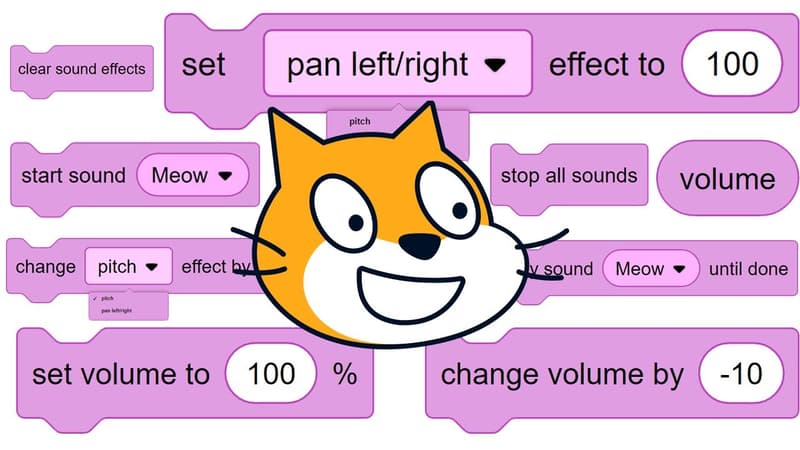
Scratch projects mainly use three types of sounds, each with a different purpose:
Sound effects
Clicks, pops or footsteps, which are short. Best applied in actions and feedback, e.g. in clicking a button or jumping or getting points.Background music
Background music played in the background to establish the mood of a particular game or story or animation. In Scratch, music may be added through the library provided or uploading your own files.Custom recorded sounds
Sound that is captured through a microphone, e.g. voice narration or dialogue of characters. These give customary and imaginative flair to projects.
A Scratch project can be enhanced by even a single timely sound. Kids are able to make their projects sound smooth and professional by controlling the volume, timing and eliminating the overlap of sound.
Understanding the Sound Tab
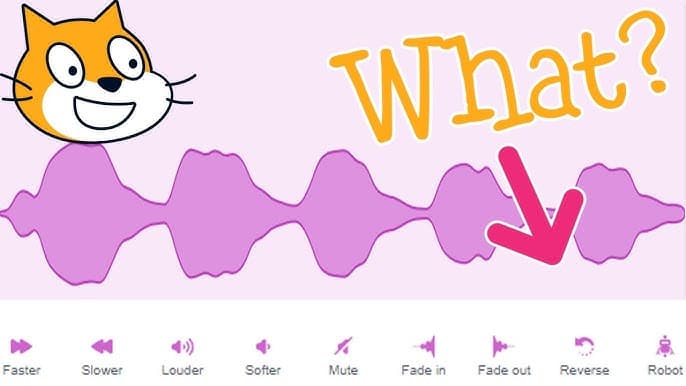
The Sound tab is on the top of the Scratch interface, next to the code tab and the costume tab. Whereas the Code tab is utilized to write the programming code and the Costumes tab is utilized to adjust the appearance of the sprites, all the work involving audio is accomplished in the Sound tab. Here you can begin any time you feel like adding, editing, and managing the sounds of a sprite or the stage.
The Sound tab allows you to play, rename, increase/decrease volume, trim audio, and apply simple effects to the sounds that you are working with. A sound is also new in this step once a sound is added here that it can be manipulated with sound blocks in the Code tab thus it is easy to relate the audio to actions in your project.
Accessing Sound Resources
Scratch is also provided with inbuilt sound library, therefore a beginner does not require downloading anything externally in order to start using it. The library contains a large variety of sound effects, music tracks, and amusing noises, which are appropriate to games, stories, and animation.
Besides accessing sounds in the library, Scratch also enables users to record their own sounds or add audio files on the service. These in-built features give children easy and secure access to sound and simple access to add audio to their projects immediately, without any additional software or technical configuration.
Navigating the Sounds Tab
The Sounds tab may be opened by clicking the Sounds option at the top of the Scratch editor of any sprite or the stage. The tab is used in conjunction with the Code and Costumes tabs and is the place of entry point when it comes to adding and managing all the audio in a project.
Sound Library Overview
Skratch sound library is developed to be kid friendly, safe, and easy to use. It has an extensive collection of royalty-free sounds including which can be used in games, stories, and animations with no limitations.
Categories of Pre-Recorded Sounds
Scratch offers numerous categories of ready-to-use sounds to resolve the project needs. They consist of effects, musical loops of background music, voices of dialogue and special scenes operation of electronic sounds or the sounds of nature.
Adding Pre-Recorded Sounds
The simplest and quickest method of adding sound effects and music to a project is through the use of the inbuilt sound library of Scratch. It enables children to easily choose among a large variety of audio clips, preview and pin them to sprites or the stage to create more interesting projects.
Prerecorded sounds are useful to enhance user experience with no additional configuration. Ready-made sound effects and music allow beginners to improve gameplay, storytelling and animations with only a handful of clicks.
Using the Scratch Sound Library
To add a sound, and the Sounds tab of a sprite or the stage and click Choose a Sound. This brings out the Scratch sound library where you can view the various categories and listen to sounds.
Searching for Sounds
There is also a search bar in the sound library, which allows you to find the sound fast. You can enter such keywords as pop, drum or meow to filter your options.
Selecting and Importing Sound Effects
Once you have chosen a sound, it will be shown in the Sounds tab where you can play or rename the sound or make basic edits. You can also use Scratch to change the volume or cut the sound in case of necessity.
When the editing or recording has been done, you should ensure that you save the changes so that the sound does not go away in your project. This will have your audio prepared at the start of the code.
Matching Sounds to Project Themes
A lot depends on the choice of sounds that suit your mood on the project. The joyous tunes are good to use with fun games, the soothing tunes are good to use with stories, and the exhilarating tones are good to use with adventures.
Children are to play with a variety of Scratch sound effects and how they alter the sensations of an undertaking. Experimenting with the options serves as the way to end up with the best sound and makes the projects more enjoyable and involving.
Sound Blocks: Bringing Audio to Life
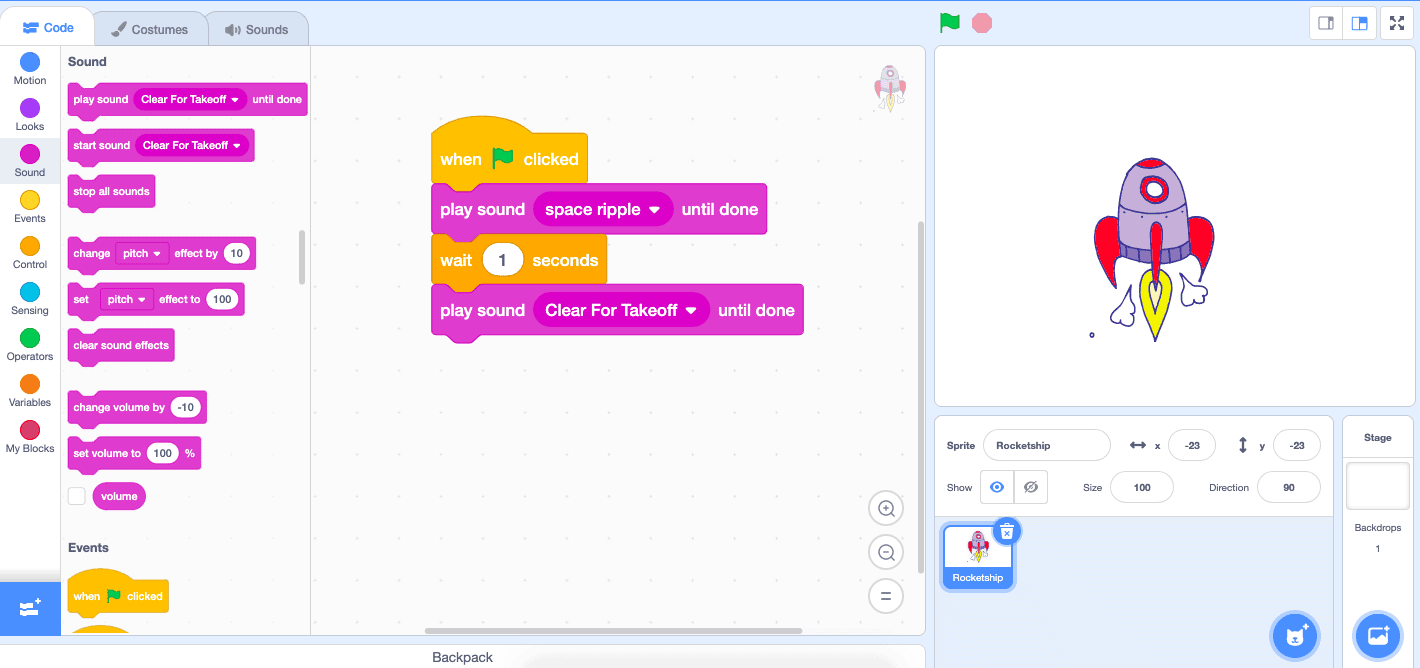
In Scratch, the only use of sound is when activated by sound blocks in the Code area. Such blocks are interactive, providing the ability to tie audio to actions and to make projects interactive rather than silent.
Blocks such as start sound and play sound until done assist in the control of the sounds playing, stopping, or repeating to bring games and stories to life.
Basic Sound Playback Blocks
Scratch offers several core sound blocks to help you add and control sound effects in your projects. The main options include:
play sound [sound] until done: Play the sound you have chosen and hold on until it completes and then continue on to the next block.
start sound [sound]: Immediately begins playing the chosen sound and then proceeds to the next block without waiting till the sound is complete. This can be helpful in playing sounds whenever there is an event such as a sprite being clicked or when the project is started.
stop all sounds: Pauses any of the sounds that are being played.
Use these blocks to control when and how your scratch sound effects are played within your project.
Play Sound Instantly
Start sound block permits the overlap of sounds which make it excellent when it comes to fast effects such as clicking or jumping.
It has a drag and drop design that allows its beginners to add instant sound effects.
Play Sound Until Done
The play sound until done block pauses until the sound is concluded and then it proceeds.
This will be most effective in conversation, directions, or musical meditations. Adjust the volume through the use of set volume.
Connecting Sound Blocks to Event Triggers
Sounds play when linked to event blocks in the Code area.
Common triggers include:
When green flag clicked
When this sprite clicked
When key pressed
Relating events to sounds is a major Scratch music programming component.
Creating Background Music
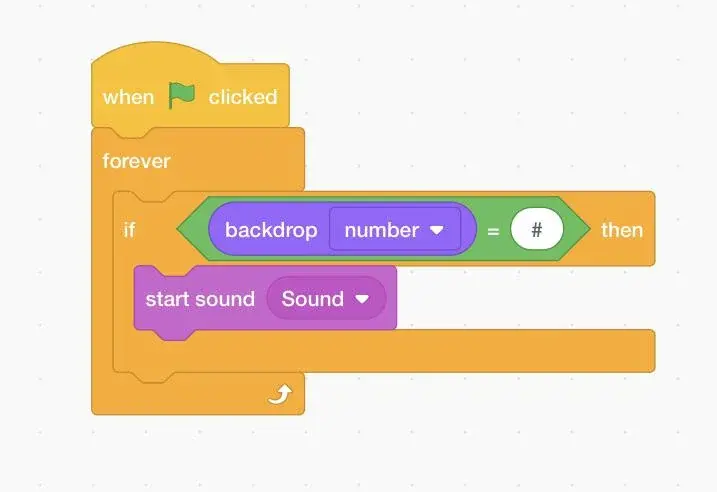
Background music contrasts with sound effects. Sound effects are brief and can be heard during actions whereas background music will be present and it will be played to create a mood of a game or a story. Mutual looping is significant on a longer project to avoid abrupt music termination.
On the use of background music, remember to have the music on low volume so that it does not drown the voices or effects. Playing soft music enhances the experience without distractions towards the player.
Looping Techniques
Looping refers to the repetition of a music over and over again softly. This keeps the background music going without lapses.
Looping is usually applied to games and stories in which music needs to go on while the project takes place in Scratch.
Creating a Music Sprite
Other projects have a different music sprite which is used to control background music. This ensures music code is arranged and out of gameplay code.
It is simpler to start, stop or swap music when necessary with the help of a dedicated sprite.
Using Forever Loops for Continuous Playback
Background music is usually played in a never-ending cycle. The sound is repeated until the project is malfunctioning.
It can be helpful in the game or narrative where music should not be paused.
Volume Control and Sound Management
Adjust the level of volume of your music and scratch sound effects using set volume blocks. Reduced volume will reduce audio congestion.
The stop all sounds block has the ability to stop overlapping sounds where necessary. In addition, make sure that your computer is loud enough to hear everything and have it balanced to learn how to add music in Scratch. 🎶
Custom Sound Creation
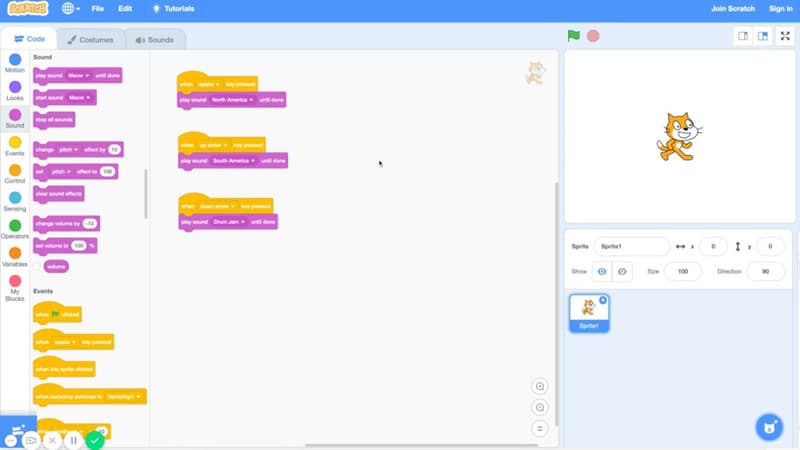
Scratch allows children to be creative in that they can add their sounds rather than using the library only. They are able to record themselves, applause, or entertaining sound effects or upload external audio to make projects more individual.
It is only necessary to open the Sounds tab and press the Record button to make a personal sound. The practical feel of this technique can be described as fun and interactive when it comes to learning sound design as part of a scratch audio tutorial.
Recording and Uploading Sounds
Scratch provides two primary methods of adding custom audio; recording sounds directly or uploading sound files. The two are convenient and can be applied to various project requirements.
Recording is good when you want to record fast voice lines whereas uploading is applicable when you have a sound or music file at hand.
Recording Directly in Scratch
With a microphone, children are able to record voices, claps or basic sound effects straight into the Scratch editor. It is ideal in dialogue or narration of characters.
The recorder is basic and allows the user to listen and record again till he or she likes the recording.
Uploading MP3 and WAV Files
Scratch is compatible with audio files such as MP3 and WAV files. External audio may be uploaded and used as background music or as special effects when they cannot be located in the library.
On being uploaded, these sounds are listed in the Sounds tab where they can be edited like inbuilt sounds.
Sound Editing Basics
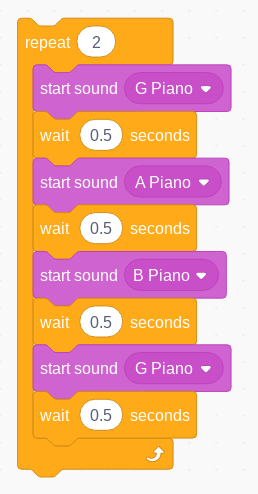
Scratch has simple editing capabilities to enhance the sound. Children are able to cut off the parts they do not want, make them darker or lighter and can change the playback pace.
These basic corrections aid in the refining of the sounds and make projects sound more professional when you are following a scratch audio tutorial. 🎧🎧
Working with Multiple Sounds
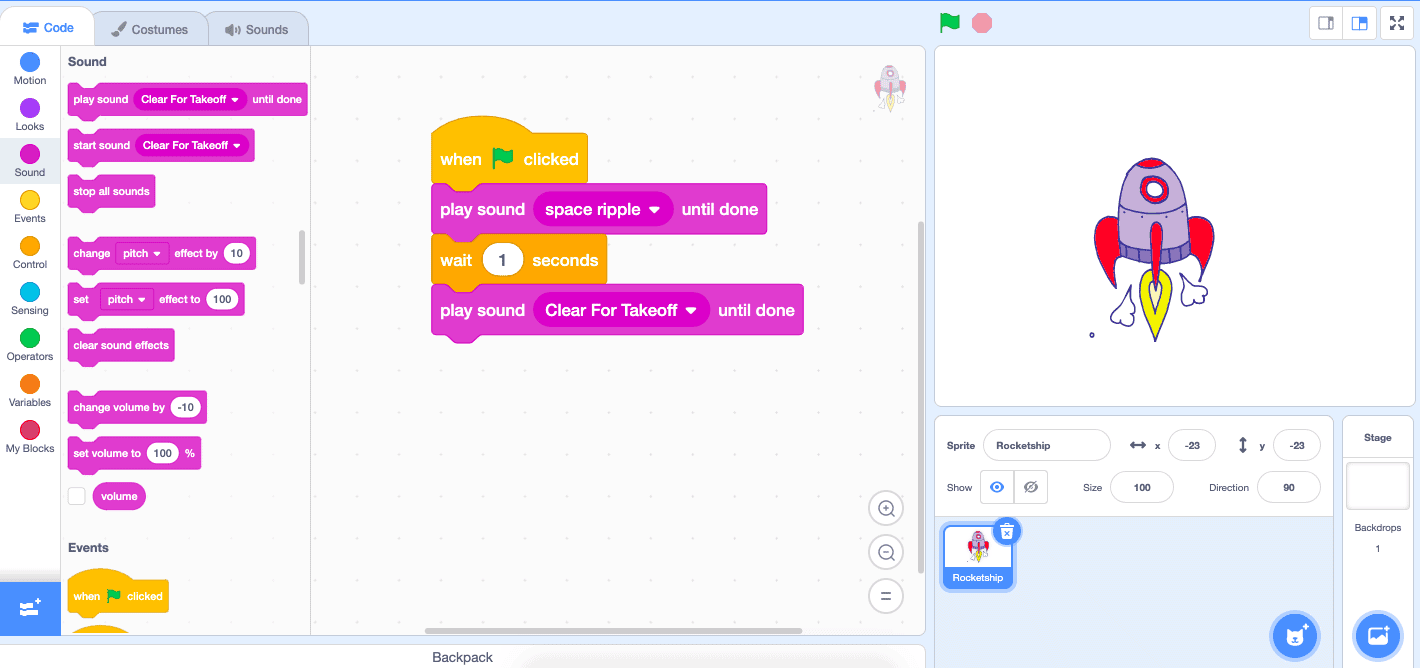
It is an amazing idea to add several sounds to your Scratch project and make it really remarkable. Scratch provides a wide range of choices in terms of background music, sound effects, and even recorded audio of your own; so you can make your ideas come alive.
The first thing to do is to open the tab of the Sounds, which is situated on the left of the upper parts of the Scratch interface. In this case, you are able to put as many sounds as you wish on each sprite or the stage. You can find the ideal background music or sound effects to use in your scene in a few clicks using the search bar - type in such words as music, pop, voice in the search bar to browse through the large selection of music that Scratch has to offer.
You can also simply upload a sound file, or record directly in Scratch, in case you wish to add your own sound. It is an excellent means of making your project very personal, whether it be through your own voice or through other personalized sound effects. Your sounds are also easily organized and edited into various sounds that can be used in different scenes of your animation, game or story as every sound will be listed in the Sounds tab.
Don’t be afraid to experiment! Experiments: Mediafire can be used to layer a background music, or combine various sounds to fit any action in the project. You can Scratch and mix, match and improve your project with the simple tap of a few buttons, there are hundreds of options in the left corner of the Sounds tab.
Advanced Sound Techniques
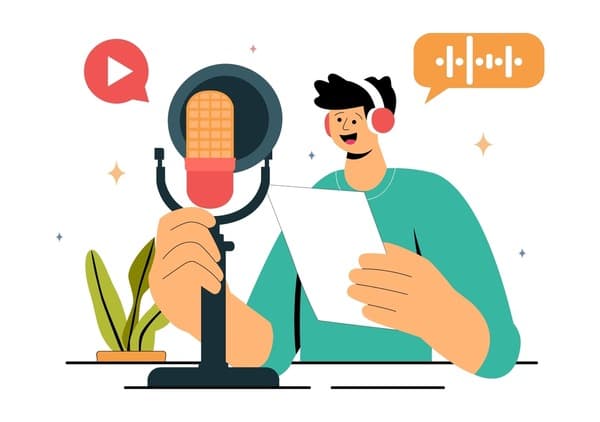
This part is those kids who have already learned the basics and possibly want to take their Scratch projects to the next level. More sophisticated sound technologies contribute to the development of more rich music, more intelligent sound management and more interactive experiences.
With the extensions and special sound blocks, kids do not stay with simple effects and begin to create actual music, as well as the projects based on voices.
Music and Sound Extensions
Scratch extensions bring more features into your project, such as sophisticated music features. The way to add an extension is by clicking the Extensions button on the lower-left corner of the Scratch editor.
Out of the list, select extensions involving music in order to access additional sounds and to build more detailed scratch sound effects and music.
Music Extension Blocks
The Music extension contains note based blocks which allow children to play a given note rather than an entire sound file. The blocks are utilized like digital music pieces.
Children also have the ability to regulate tempo and audio can either be faster or slower, depending on the mood of the project.
Adding Instruments
Scratch has digital instruments such as piano, drums, and synth sounds with extensions of music. Children are able to compose their own tunes using them.
Using a combination of notes and instruments they can directly compose original background music in Scratch.
Conclusion - Add sounds and music in scratch coding
Sound in Scratch facilitates learning to master sound in simple projects to make it an exciting and interactive experience with kids. Be it the sound effects of what is going on, the background music of what is going on, or the personal touch of audio, sound makes games and stories more interesting and enjoyable to explore.
Children need to be made to experiment with various sounds, music and blocks to find out what suits best. Sound in Scratch is an influential tool of storytelling - and, with imagination and practice, anything can be made possible.
FAQs
How to make sound effects on Scratch?
Sound effects are available in Scratch, and can be added with the help of the Sounds tab on the stage or the sprite, where you can then record your own audio, or upload a sound file or select one of the Scratch sound library. After adding, sound blocks can be played, looped, or stopped in the Code tab at any time and back.
How to find sounds on Scratch?
To locate sounds you need to open the Sounds tab and then Select a Sound. You are also able to navigate through categories such as effects, music and voices as well as search in the search bar by typing in keywords such as, pop, drum, or meow and find the sound that you are seeking in a quicker period.
Can I use record Scratch sound effects for free?
Yes! Scratch has a free inbuilt library of sounds and you can record your sounds free of charge. Any sound included in Scratch is royalty-free and safe and can be used in your projects without any licensing.
What music files does Scratch accept?
Scratch can read and write such typical audio formats as MP3 and WAV. These files can be downloaded and used as a background music, sound effects or personal audio files in any project and as a result, you can add your favorite music or some audio recordings to your project.
How do I add a background song?
In order to add some background music, open the Sounds tab on the stage, choose or upload your music, and insert a forever loop and a play sound until done block in the Code tab. This is so that your music is in the background when your project is running and it is a seamless and immersive experience.
Comments
Your comment has been submitted