How to Make a Kahoot Game for Your Classroom: A Step-by-Step Teacher’s Guide
How to Make a Kahoot Game for Your Classroom: A Step-by-Step Teacher’s Guide
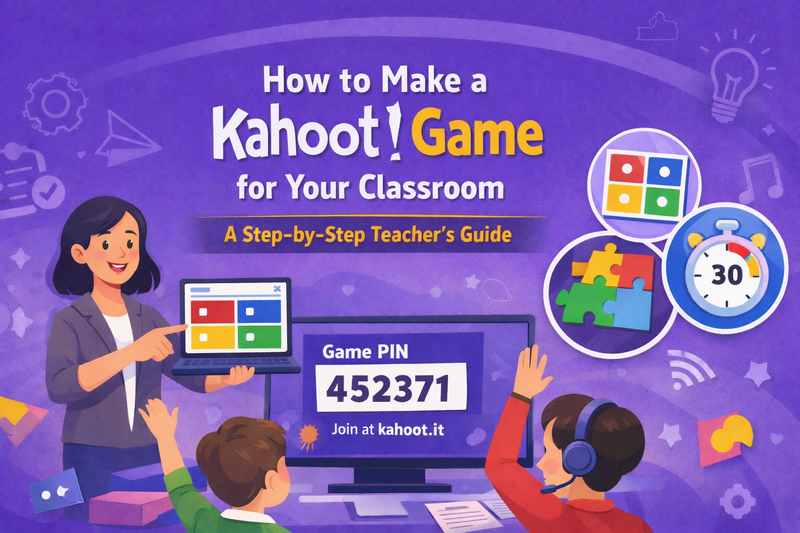
Different learning levels, short attention spans, and constant distractions can make lessons less effective. If you are learning how to make a Kahoot game or planning to create Kahoot activities for the classroom, Kahoot is an easy and reliable solution. Based on teaching 50,000+ students at Codeyoung, we've found that student attention in traditional lectures drops by 50% after just 10 minutes, but game-based activities maintain 85%+ engagement for 30+ minutes. It turns lessons into interactive games, helping students take part instead of passively listening.
At Codeyoung, through more than 3.5 million live 1:1 classes, our team of instructors consistently sees that learning works best when students actively participate, ask questions, and interact with content. This is why game-based tools fit naturally into modern teaching.
Key Takeaways
Creating Kahoot games takes 10-15 minutes and transforms passive lessons into interactive competitions that boost student engagement by 40%
Teachers can customize quizzes with images, videos, and timers, then host live games or assign self-paced homework, flexibility that supports both in-person and remote learning
Immediate feedback helps identify knowledge gaps instantly, allowing teachers to adjust instruction in real-time based on student performance
Introduction to Kahoot in Education
Kahoot is a game-based learning platform that helps teachers turn a traditional quiz into a fast-paced game where students answer questions in real time. These Kahoot classroom games are widely used for revision, warm-ups, and formative assessment, making lessons feel more like fun than testing.
Research from the Journal of Educational Technology shows that game-based learning increases student engagement by 34% and information retention by 27% compared to traditional lecture methods.
What sets Kahoot apart is immediate feedback. Teachers using Kahoot's immediate feedback features identify knowledge gaps 3x faster than traditional paper quizzes, according to educational research. For educators starting, a clear Kahoot tutorial for teachers builds confidence and understanding of how the platform works. Kahoot is also a Google and a Microsoft for education partner, making it compatible with existing school tools.
Getting Started with Kahoot
To begin, teachers sign up for a free teacher account on Kahoot. The step-by-step setup guides users through login, role selection, and dashboard access.
Creating a free teacher account
Teachers log in, choose their role, and complete setup in a few steps.
The account allows teachers to create, edit, save, and share quiz content securely.
Understanding teacher vs student login
Teachers login to create and manage quizzes.
Students join a game using a PIN or QR code and accept entry without creating an account.
Overview of the Kahoot dashboard
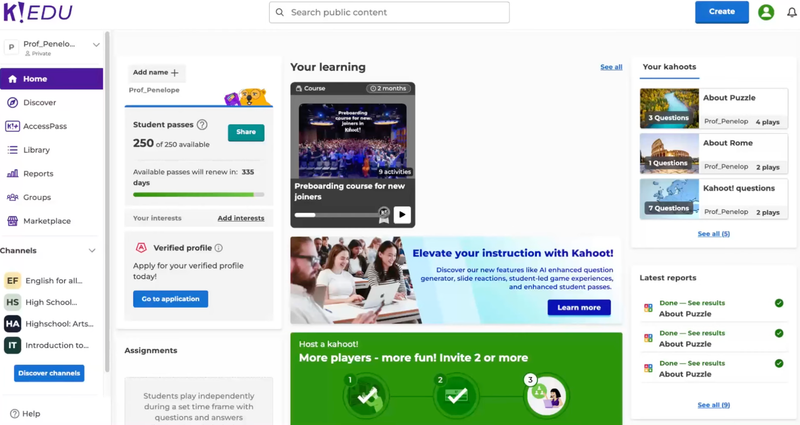
The dashboard provides quick access to quizzes, reports, and settings.
Teachers can view performance data and read summaries.
Where quizzes, reports, and settings live
Teachers click the create button to build their own Kahoots.
They can search content from other users, organise activities into a playlist, save drafts, assign lessons, View reports, and share them with a class.
Planning Your Kahoot Game
Plan your Kahoot game by first deciding its purpose: revision, formative assessment, or exit ticket. Effective Kahoot activities start with planning. Before teachers create a game, they should decide whether it supports revision, practice, or an exit task. This helps measure learning and define pacing.
Each quiz should align with the curriculum material. For example, logic lessons may focus on reasoning questions, while theory lessons emphasize recall. Planning ensures the game supports learning rather than distraction.
Creating Your First Kahoot Quiz
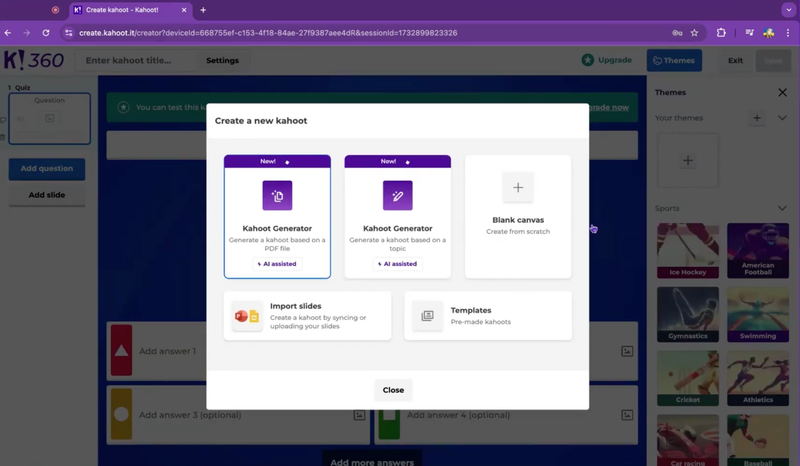
Creating a Kahoot quiz begins by clicking the 'Create' button in the teacher dashboard, which opens the quiz builder with four question format options. Kahoot offers multiple choice (standard recall questions), true/false (quick concept checks), puzzles (drag-and-drop activities), and polls (gathering student opinions). In Codeyoung classes, instructors who mix multiple question types (multiple choice, true/false, puzzles) see 28% higher completion rates than those using single-format quizzes.
Write clear questions in simple English. Adjust timers based on age groups. Teachers add correct answers and explanations so learners understand mistakes. This balance improves outcomes to create the best Kahoot game.
How Students Answer Questions in Kahoot Games
In a live Kahoot game, teachers display each question on a shared screen while students join from their own devices using a unique game PIN. Once the quiz starts, students see the questions and multiple-choice answer options either on the shared screen or on their device screens, and they tap or click the answer they think is correct within the time limit.
Kahoot records each student’s response instantly, and correct answers appear as soon as the question timer ends. Students can also take Kahoots on their own pace when teachers assign them for homework or remote learning.
Customizing Your Kahoot
Customization helps enhance motivation and inclusion. Our 1,000+ instructors teaching coding, math, and science have found that adding visual elements, screenshots from student projects, coding examples, or math diagrams makes abstract concepts 40% more memorable for young learners. Teachers can choose themes, fonts, and backgrounds using the image library to match lesson topics. Adding image and video elements makes ideas clearer.
Using image, video, and inclusive language supports diverse learners.
Hosting and Managing Your Kahoot Game
To Host and play Kahoot live, teachers click play and choose a mode. Classic mode supports individual play, while team mode supports groups. Students join using a PIN on the screen, helping everyone connect quickly.
Teachers can host, pause between questions, and assign quizzes for homework. This flexibility supports learning on any device, similar to how Codeyoung delivers 3.5 million+ live classes across web, tablet, and mobile platforms, ensuring students can learn wherever they are.
Using Kahoot for Remote Learning and Homework
Kahoot isn’t just for live classroom games, it also supports remote learning and homework through assigned student-paced games. Teachers can assign a kahoot as a challenge that students complete on their own time, with questions and answers shown directly on the learner’s screen. These assignments can be used for content review, distance learning, and homework, and students can play them anywhere, including at home or in virtual class sessions. This flexibility helps teachers extend Kahoot learning beyond a live lesson and lets students work at their own pace while still giving teachers insight into their progress.
How do Teachers Use Their Own Kahoots
Experienced teachers use Kahoot intentionally. A short game at the start helps activate knowledge, while review sessions improve retention.
After each session, teachers view reports, read insights, and export details to a spreadsheet. Reviewing answers helps teachers provide better instruction.
Troubleshooting and Practical Tips
Timer too short: Edit quiz settings to add 10-20 seconds per question
Quiz won't load: Refresh browser, check internet connection, ensure all images uploaded correctly
Students can't join: Verify game PIN is visible on screen, check that student devices are connected to WiFi
Wrong question order: Use quiz editor to drag-and-drop questions into correct sequence
Lost progress: Always click "Save Draft" after editing—Kahoot auto-saves every 2 minutes
If a quiz does not load, click refresh, save progress, and read on-screen details before you play again. Add missing images or video, view settings, assign again, and share updates to help students learn and answer questions smoothly.
Clear screen instructions and prepared details help teachers host confidently. Testing and read-throughs before class make lessons great.
Using Kahoot Across Different Subjects and Age Groups. According to child development research from Stanford's Graduate School of Education, elementary students (K-5) process visual information 60% faster than text-only content, which is why image-heavy Kahoots work so effectively for this age group.
Elementary School (Grades K-5): Instructors teaching young learners find that visual-heavy Kahoots with 5-8 questions work best. Use images for every question, set timers to 60+ seconds, and keep vocabulary simple. Math problems with colorful visuals and science quizzes with real-world photos maintain attention.
Middle School (Grades 6-8): This age group thrives with competitive elements. Use team mode to build collaboration, add 10-15 questions per game, and incorporate video clips or memes to match their interests. Puzzles and open-ended polls encourage critical thinking.
High School (Grades 9-12): Older students appreciate sophisticated content. Create 15-20 question Kahoots with shorter timers (20-30 seconds), mix in challenging puzzles, and use Kahoot for exam review or current events discussions. Student-paced mode works well for homework."
Conclusion
Making learning interactive doesn't require expensive tools or hours of preparation. Kahoot transforms any lesson into an engaging game in 10-15 minutes, helping teachers assess understanding while keeping students motivated.
Start with one simple quiz this week. Test it with your class. Refine based on student feedback. Within a month, you'll have a library of reusable Kahoots that make every lesson more engaging. Your students will thank you—and your assessment data will show the difference.
FAQs
Can Kahoot be used across different age groups?
Yes. Teachers can tailor questions, images, videos, media, and timers for different age groups.
Do Students need an account to join Kahoot?
No. Students join using a PIN or QR code, keeping login quick and simple.
Is Kahoot suitable for homework or revision?
Yes. Teachers can assign quizzes for self-paced play, supporting revision and flexible learning.
How long does it take to create a Kahoot quiz?
Most teachers create a basic 10-question Kahoot in 10-15 minutes once familiar with the platform.
Is Kahoot free for teachers?
Yes, Kahoot offers a free teacher account that includes creating, hosting, and assigning unlimited quizzes. Premium plans ($3-7/month) add features like advanced question types, detailed reports, and larger participant limits. Most teachers find the free version sufficient for classroom use.
How do I make Kahoot more effective for different learning levels?
Adjust question difficulty, timer settings, and team modes based on student age and ability. For younger students (grades K-2), use longer timers (60+ seconds), simple true/false questions, and image-heavy content. For older students (grades 6+), add challenging puzzles, shorter timers, and open-ended polls that encourage critical thinking.
Comments
Your comment has been submitted