Scratch Projects for Different Age Groups
Scratch Projects for Different Age Groups
Scratch stands as the world's leading platform for introducing young people to coding. Its true power lies in its adaptability. This guide provides a clear path for parents and educators, breaking down the best scratch coding projects for each developmental stage. From a child's first scratch project to advanced creations, you will discover how to match the challenge to the age. This approach builds confidence, strengthens problem-solving skills, and makes learning to code a fun and creative adventure for every child, fostering a sense of community among learners.
Introduction
Scratch coding projects work best when they match a child's developmental stage. A five-year-old enjoys quick, visual results, while a teenager needs more complex logic to stay engaged. Choosing the right level of Scratch learning prevents frustration and helps students enjoy creating with code.
Project-based learning helps turn abstract concepts into games and animations that feel meaningful. This supports creativity, logical thinking, and persistence. When students build something on their own, the learning becomes stronger.
Projects also build design skills, problem-solving, and computational thinking. This guide outlines Scratch projects for ages 5 to 16, explains when to switch platforms, and provides clear steps for planning a project that lets students express their ideas.
Understanding Scratch
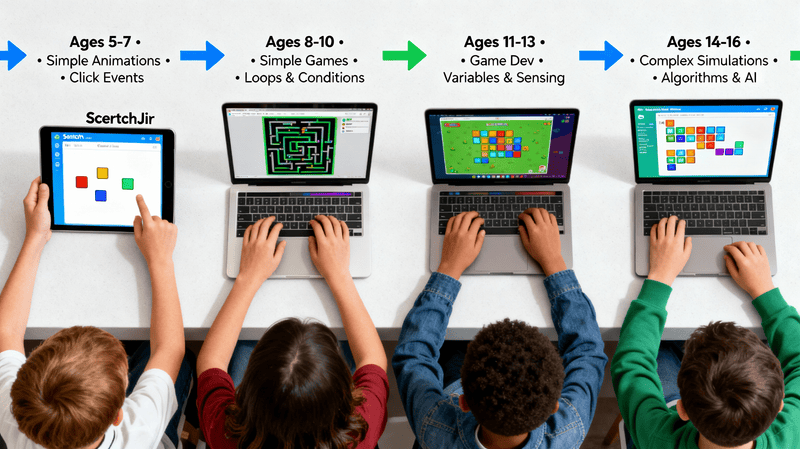
Scratch offers two main platforms, each designed for specific age ranges. ScratchJr and Scratch serve different ages and goals. ScratchJr (ages 5–7) uses big icons and tap events, no reading needed. Scratch (ages 8–16) adds motion blocks, variables, loops, and sensing. Choose ScratchJr for early learners who need immediate visual feedback to create their own ideas for a scratch game. Move to Scratch when kids are ready to think in sequences and use code blocks to create interactive stories. Transition when a child asks to customize sprites, track scores, or build a scratch game.
Two Platforms for Two Age Groups
Before starting, choose the right tool. Scratch offers two main platforms, each designed for a specific age group. Picking the correct app sets your young people up for success from the very start.
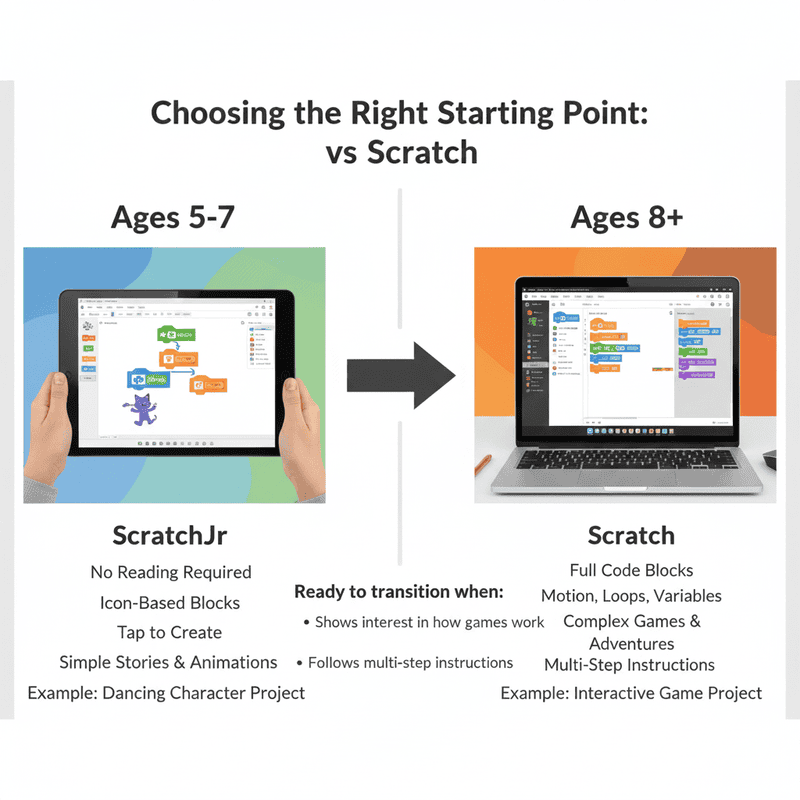
ScratchJr vs Scratch | Choosing the Right Platform
For kids ages 5–7, ScratchJr is a good starting point. It uses simple picture-based blocks that snap together and do not require reading. Children can make short stories and animations with basic actions.
For ages 8 and up, Scratch offers more tools, including motion blocks, loops, and variables. Students can build more detailed games and interactive projects. A child is ready for Scratch when they show interest in how games work and can follow multi-step instructions.
A simple first project is a dancing character that changes costumes and plays sounds. Other options include greeting cards, animal animations, and small tap-to-interact games like Color Pop Story.
Ages 5–7: Beginner Projects
For young children their first scratch project should be short, visually exciting, and instantly rewarding. The goal is to spark joy and creativity within the community.
Great project ideas include making a dancing character, an animal animation with sounds, or a magic greeting card. These fun scratch projects are perfect for beginners and teach the absolute basics. Children learn to drag and drop code blocks, use click events, and create simple sequences. They customize their sprites and see immediate results, which builds confidence.
Simple Animations & Stories | Interactive Games | Creative Expressions
A few project ideas:
Dancing Character: Tap the sprite to make it dance. Use simple motion blocks. Add a sound block for reward.
Magic Greeting Card: Click to change costumes and play a chime. Great for holidays.
Color Pop Story: Tap the background to change colors and watch sprites react.
Tap-to-Interact Mini Game: One-button interactions teach cause and effect.
Focus on click events, sequences, and imagination. Encourage kids to pick sprites they love. Let them draw costumes. Celebrate small wins: “You made the cat dance”. For classroom pacing, plan 15–30 minute blocks. Keep a gallery of first scratch project screenshots so kids see progress.
Ages 8–10: Early Scratch Projects (Beginner Level)
At this age, kids can handle keyboard input and simple conditionals. They like making things they can show off, which does matter in their development.
Simple Animations | Easy Games | Basic Interactivity
At this stage, kids understand basic logic. They are ready to make their own Scratch game. They can handle bigger ideas and enjoy working toward a clear goal.
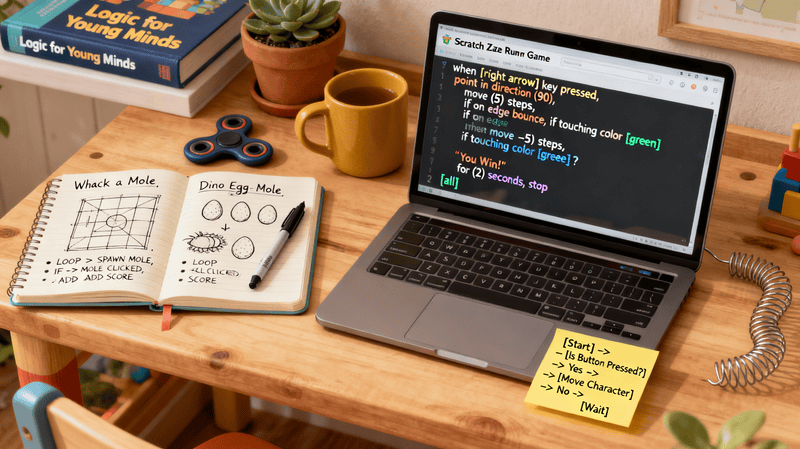
Great Scratch projects for this age include a maze game, a “Dino Egg Hunt” clicking game, or a simple quiz. These projects teach important coding skills. Kids use motion blocks to move a character with the keyboard. They begin using loops for actions that repeat and “if” blocks for choices in the game. This helps them see how different blocks work together to make things happen.
Some easy project ideas:
Maze Runner Game: Move a character through a maze with the arrow keys. Show a “you win” message at the end.
Quiz Game: Ask a question, check the answer with an “if” block, and update the score.
Whack-a-Mole: Use clones to make characters appear and disappear. Add simple timing.
Dino Egg Hunt / Flying Space Cat: Pick up items and earn points in a themed game.
Ages 11–13: Intermediate Scratch Projects
Kids at this stage love creating games, animations, sound projects, and interactive stories with more advanced logic.
Game Development | Storytelling | Creative Animations
Young teens are ready for more sophisticated scratch game development. They enjoy creating games with score tracking, interactive stories, and animations with advanced logic, as they become familiar with the programming language .
Engaging project ideas for this group are a Flappy Bird clone, a Pac-Man style chase game, or a side-scrolling platformer. To build these, students progress to using variables to track data like points and lives. They use more complex loops and sensing blocks to create dynamic effects. These skills form the foundation for all future programming.
Good projects to develop deeper skills:
Flappy Bird Clone: Gravity simulation, simple collision, score by passing pipes.
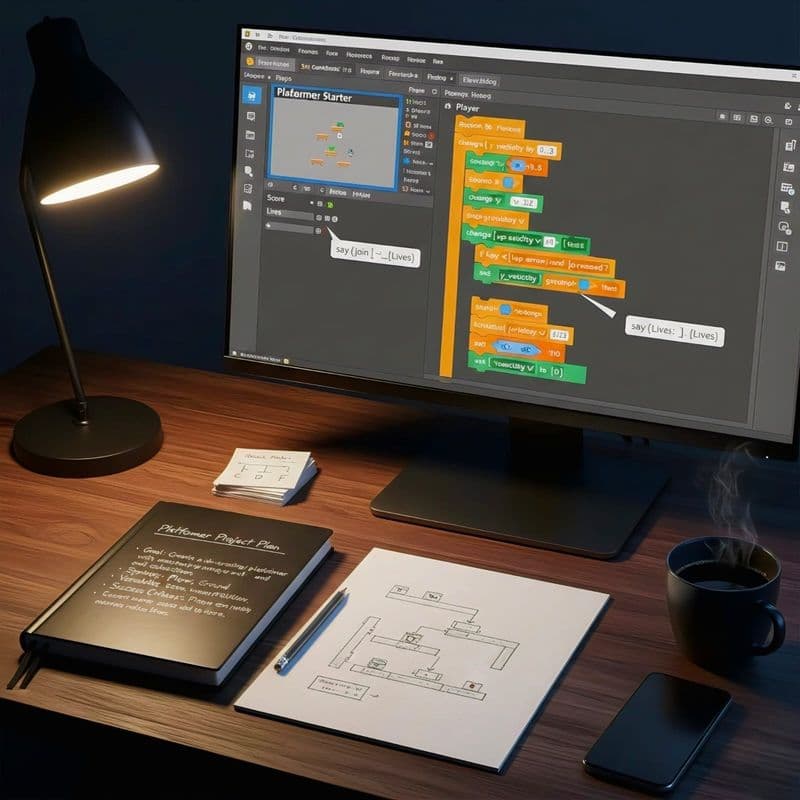
Platformer Starter: Jumping physics, moving platforms, basic level design.
Music Maker / Piano: Map keys to notes, track sequences in lists.
Pac-Man Style Chasers: Teach basic chase logic, use sensing blocks and variables for lives/score.
Teach debugging as a habit: add “say” blocks for variables to inspect values in real time. Encourage students to document a project plan: goal, sprites, variables, and success criteria.
Ages 14–16: Advanced Scratch Projects
Older learners are ready for simulations, complex mechanics, AI logic, and algorithm-based coding to navigate the world of program.
Complex Games & Simulations | Algorithm Implementation | AI & Data Visualization
Older students can handle complex simulations and algorithms. They can create Scratch games with advanced mechanics, including basic AI and data systems.
Strong project options include a space shooter with scrolling backgrounds, a physics-based game, or an opponent that uses simple pathfinding. These projects use lists for data and custom blocks for organized code. This prepares students for text-based languages like Python.
Project ideas:
Space Shooter: Scrolling background, enemy patterns, power-ups.
Physics Game: Use basic acceleration and friction.
AI Opponents: Simple chase or avoid behavior.
Data Visualizations: Use lists to display values with sprites or bars.
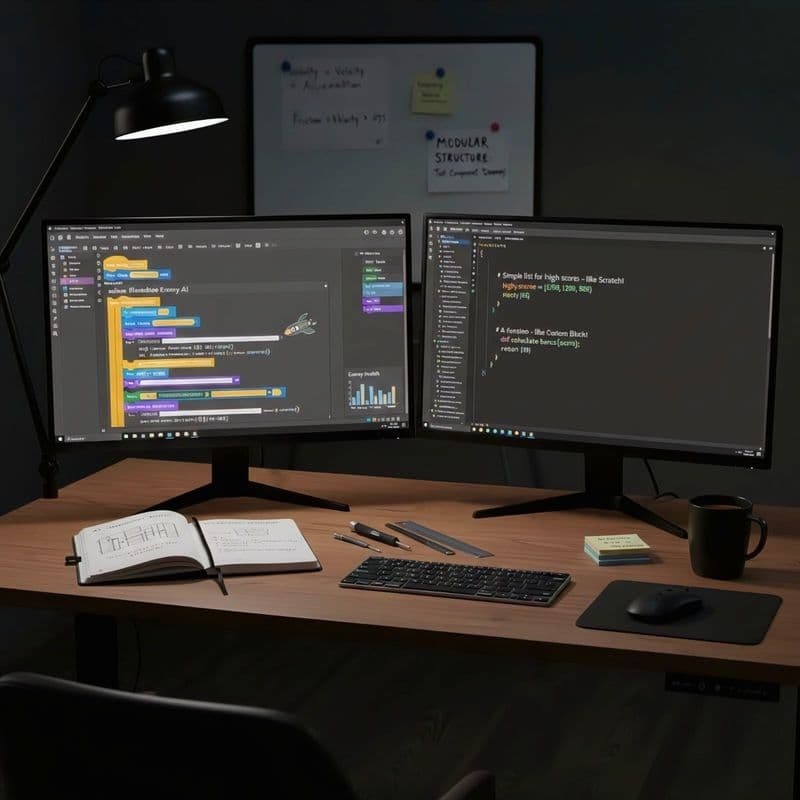
Teach students to use custom blocks, lists, and modular structure. Focus on efficient code and solid debugging: test components separately and watch for edge cases. Advanced Scratch work builds skills that transfer to Python and JavaScript.
Project-Based Learning: Benefits Across All Ages
Project-based learning is the foundation of Scratch education. This section should emphasize its long-term benefits, similar to a course that builds a strong foundation.
Developing Computational Thinking | Problem-Solving | Creativity | Collaboration
Scratch projects work because they turn ideas into working code. Students learn computational thinking by breaking problems into small steps and fixing mistakes as they go. The Scratch community also supports sharing and remixing, which helps students learn from each other.
Project work outperforms lectures. Students learn faster by building and correcting their own code. Group projects build teamwork, code review habits, and shared debugging skills. Creative tasks mix storytelling, design, logic, and math. Treat mistakes as part of the process, and encourage students to remix and revise their work.
Step-by-Step: Building Your First Project (By Age)
Offer writers a framework to give specific guidance per age group.
For Ages 5–7 | For Ages 8–10 | For Ages 11–13 | For Ages 14–16
A compact framework teachers can reuse:
For ages 5–7:
Pick a sprite and simple goal.
Show two or three blocks to start.
Let the child experiment for 10 minutes.
Add a sound or costume change as reward.
For ages 8–10:
Plan: goal, controls, win condition.
Build movement and collision first.
Add scoring and a timer.
Polish with sounds and backdrops.
For ages 11–13:
Draft mechanics on paper: sprites, variables, lists.
Build core loop (gameplay).
Add levels, lives, and UI.
Test, fix, and document it.
For ages 14–16:
Architect modules using custom blocks.
Prototype core mechanics.
Optimize loops and cloning logic.
Add data tracking or AI as final features.
Save the progress frequently. Use comments in scratch as reminders. Remind learners to remix for inspiration.
Popular Scratch Projects to Try Now
If you need inspiration, the Scratch community is full of project ideas.
Trending Starter Projects | Award-Winning Student Projects | Community Favorites
A short list of fun scratch projects students build in one or two sessions:
Maze Starter
Dance Party (animation + sound)
DJ Cat remake (sound + costume changes)
Candy Collector (collectible + score)
Spiral Art Maker (loops + pen)
These projects are perfect remixes and help learners build momentum.
Resources & Tools for Age-Appropriate Projects
Free Project Templates | Learning Paths | Communities & Support
You do not need to do this alone. Many resources exist to help students progress.
The Scratch website offers official starter projects and a full tutorial library.
The Scratch community provides endless inspiration and support.
Teacher accounts help manage classrooms and student projects.
Technical Note: You might rarely encounter an "error 429 too many requests." This is a "varnish cache server" issue, meaning you have sent many requests to the server too quickly. The solution is simple: wait a moment before you continue. This is not common for the average user.
Common Challenges & Solutions by Age Group
Technical Issues | Motivation Dips | Complexity Jumps
Every learner faces hurdles. A young child might get frustrated. Guide them to check each block. An older student might try to build something too complex. Encourage them to start with a smaller version. The key is to follow through and view challenges as part of the learning process.
Project Ideas Checklist by Interest
For Artists | For Gamers | For Storytellers | For Problem-Solvers
For artists: spiral art maker, costume animation, interactive storybook.
For gamers: racing, maze, platformer, space shooter.
For storytellers: branching narratives, animated comics.
For problem-solvers: puzzles, quizzes, simulations.
Troubleshooting & Common Issues (Including “429 Too Many Requests”)
Common problems and fixes:
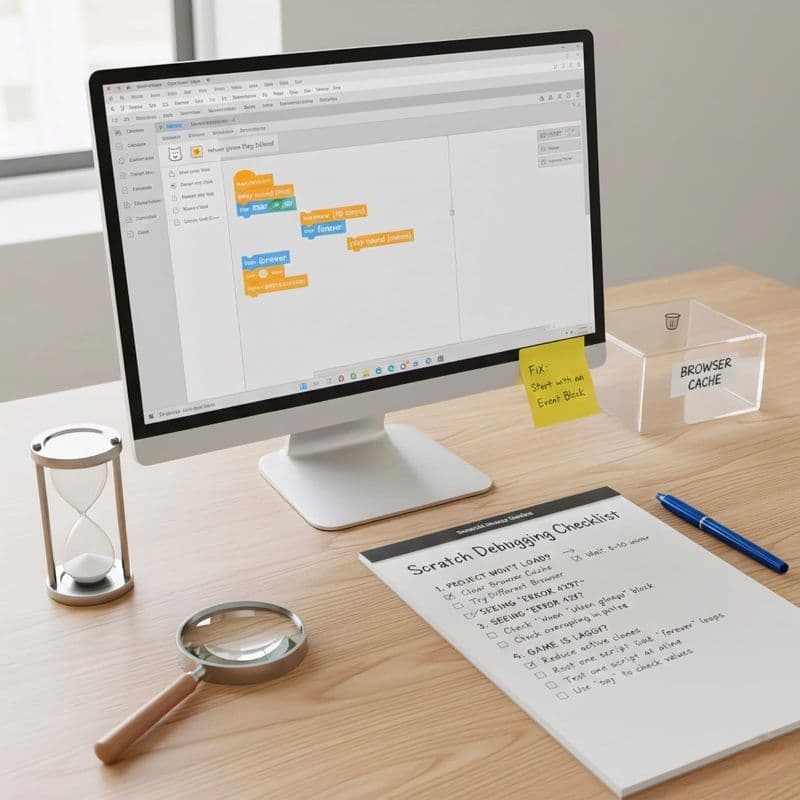
Project won’t load: Clear browser cache and retry. Try a different browser or device.
Many requests / Server limits: If the Scratch website shows error 429 too many or 429 too many requests, it usually means your network or many users from the same IP made too many API calls. Wait a few minutes, reduce automated polling, or switch networks. If a whole class is uploading at once, stagger saves and project publishes.
Sprites not responding: Check event blocks and ensure scripts start with a clear “when green flag clicked” or “when sprite clicked.”
Performance lag: Reduce clones and complex loops. Use lists carefully.
Classroom tip: Keep a troubleshooting checklist visible. Teach students to isolate the bug by testing one block at a time.
FAQ: Projects, Ages & Progression
Is my child ready for Scratch?
If they can use a mouse and drag elements , they can start with ScratchJr. Most 8-year-olds are ready for the main Scratch platform.
How long should a first project take?
Keep it short. Aim for 15-30 minutes. The goal is a quick win.
What if they get stuck?
Encourage them to explain the problem out loud. The Scratch community forums are also a great resource.
Are Scratch projects free?
Yes, creating and sharing projects is completely free
Conclusion: From First Project to Creative Coder
Moving from a beginner to a capable coder is a clear, steady process. The right Scratch projects help young learners build creativity and logic. Start a Scratch project and let kids explore, create, and learn. They build problem-solving skills, persistence, and design abilities. These skills matter in a digital world.
Comments
Your comment has been submitted